
A fast typing score looks impressive until you check how much of that text came out wrong. Speed shows how much you produced. Accuracy shows how much of it was usable, and it’s often the more honest of the two numbers.
This guide covers what a typing accuracy test measures, how the percentage is worked out, which scores make sense in different situations, and how to use your test results to fix the mistakes holding your score back.
What Is a Typing Accuracy Test?
A typing accuracy test is a timed test that measures how closely what you type matches the text on screen, reported as a percentage alongside your words per minute. A plain speed test mostly cares about how many characters you get through. An accuracy test also tracks every character you get wrong.
That difference matters more than it sounds. Say the prompt reads “Please send the invoice by Friday” and you type “Please snd the invioce by Fridya.” Every word is there, and you probably finished quickly, but three need fixing. In an embarrassing email, in a column of account numbers, it’s a problem nobody may catch until later.
That’s why most typing tests show speed and accuracy separately. Read together, they give a fairer picture of your typing performance than either one alone.
How Is Typing Accuracy Calculated?
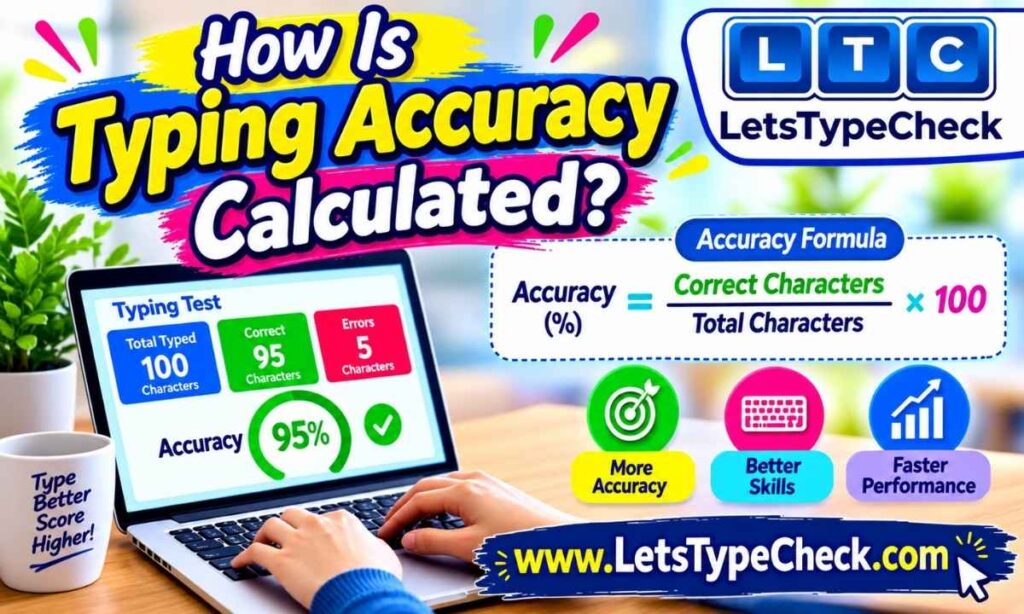
Typing accuracy is the share of characters you typed correctly, shown as an accuracy percentage:
Accuracy (%) = correct characters ÷ total characters typed × 100
In plain terms: take everything you typed, count how much of it matched the original, and divide. If you typed 300 characters and 288 were right, your accuracy is 288 ÷ 300 × 100 = 96%. The other 12 are incorrect characters, and your error rate is the remainder, 4%. Spaces and punctuation count as characters, so a missing space or a stray comma costs as much as a wrong letter.
One detail explains why the same typist can score differently from site to site. Some typing accuracy tests online count every wrong keystroke, even one you backspace and fix straight away. Others only compare your final text with the original, so a corrected mistake costs you time but not accuracy. You can check which method a test uses yourself: make one deliberate error early, correct it, and see whether the accuracy figure drops.
Accuracy and WPM are linked but measure different things. WPM is normally the characters typed divided by five (the standard “word” length), then by the minutes taken. Some tests also subtract uncorrected errors to give a lower “net” figure, which is why a careless run can post a decent raw speed and a disappointing final score. The full calculation is in our explainer on gross vs net WPM.
What Is a Good Typing Accuracy?
For most people, 95% or higher is a solid target, and 98% or above is a strong result for work where text has to be clean. Consistently below 90% usually means you’re typing faster than your current control allows.
Those numbers only make sense in context:
- Practice: While learning touch typing or recovering from bad habits, 85–90% is common. The trend over a few weeks matters more than any single score.
- Exams and job tests: Every test sets its own rules. Many government typing exams and employer screenings deduct for errors or allow only a small number, so holding 95%+ at your target speed leaves some margin. No percentage guarantees a pass, so check the specific rules for your test.
- Everyday work: For emails you’ll proofread anyway, around 95% is workable. For data entry, codes, or figures, 98–99% matters much more, because a wrong digit can’t be spotted just by reading it back.
Chasing 100% on every attempt usually means typing well below your natural pace. A steady 97–99% is the more useful long-term goal.
Typing Speed vs. Accuracy: Which Matters More?
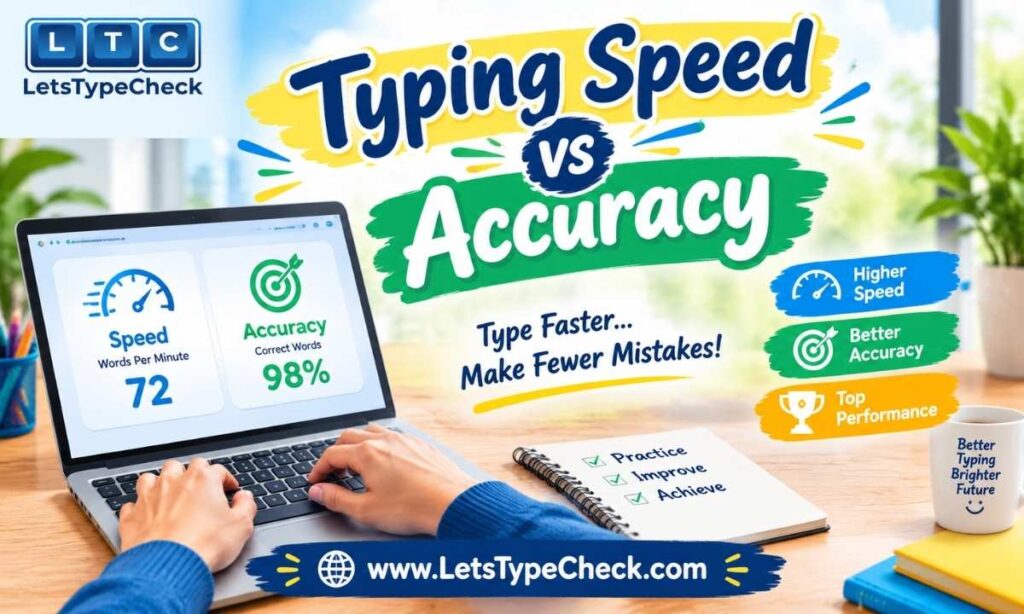
For building skill, accuracy comes first. Speed still matters, but every error has to be noticed, deleted, and retyped, and the ones you miss stay in the finished text.
Picture two typists on a one-minute test. Typist A hits 70 WPM at 90% accuracy. Typist B manages 60 WPM at 98%. On raw output, A wins. But 70 WPM is about 350 characters, so A’s run contains roughly 35 wrong ones. B has about 6. On any test that penalises uncorrected errors, much of A’s lead disappears, and in real work A spends the saved seconds hunting down mistakes.
The results also point in different directions. B’s next step is simply more pace. A’s next step is to slow down, because at 35 errors a minute there’s no single weak key to fix, just a speed the hands can’t support yet.
Pushing past a comfortable pace usually looks like A’s result: your eyes stop reading ahead, your fingers start guessing, and errors pile up in unfamiliar words. Raising speed in small steps while accuracy holds sticks far better. Once your accuracy is steady, the techniques in how to type faster become much more effective.
Common Typing Errors That Lower Accuracy
Typing mistakes tend to fall into a few recognisable groups, and spotting yours tells you what to work on.
Wrong keys and missed keys are what most people think of: “bsd” for “bad,” or “plase” for “please.” Neighbouring-key slips usually mean a finger has drifted off its home position. Dropped letters usually mean you’re rushing.
Doubled characters and Shift problems are easy to overlook. “Thhe” comes from a finger resting too long on a key. “THe” comes from holding Shift a beat too long, and “monday” from missing it entirely. Both are timing problems rather than knowledge problems.
Number-row and punctuation errors cost more than people expect. The top row is a longer reach, so “2026” easily becomes “2036.” The semicolon and apostrophe sit side by side, which is why “don;t” turns up so often.
Two habits sit behind many of these: glancing at the keyboard, which costs you your place in the text, and fading concentration. If mistakes bunch up near the end of a test, focus is the likelier problem.
For the full error breakdown, including a quick diagnostic, see common typing mistakes and how to fix them.
How to Improve Your Typing Accuracy

The test itself is one of the best improvement tools you have, as long as you use the results rather than just glance at them:
- Set an accuracy floor. Pick a number, such as 95%, and treat any run below it as a signal to slow down next time, whatever your WPM said.
- Review your mistakes after every test. Note the words and keys that tripped you up while they’re fresh. After a handful of tests, the same few usually keep coming back.
- Drill those keys and combinations. Spend a few minutes of keyboard practice on them, typing words that contain the awkward pair (for example, “ght,” “br,” or a number next to a letter) slowly and correctly.
- Check finger placement where errors cluster. Repeated slips on the middle keys, like G, H, B, and Y, often mean the wrong finger is doing the reach.
- Use short timed tests as check-ins. A quick test before and after a practice block shows whether the work is landing, without turning every session into a race.
Building the underlying habits, like home-row anchoring, no-look typing, rhythm, and correcting mistakes properly, is covered in our full guide to improving typing accuracy.
How to Practice for Better Accuracy
Here’s a simple routine to build your typing practice around:
- Take a baseline test. A one- or two-minute test at your normal pace. Write down your WPM, accuracy, and mistakes.
- Practise at a comfortable speed. The goal is consistently clean text, not a personal best.
- Look for patterns. Are the same letters going wrong, or do the mistakes pile up near the end?
- Target those mistakes. Open each session with a few minutes on them before anything else.
- Retest under the same conditions. Same duration, same difficulty, so the numbers are comparable.
- Raise the pace gradually. Push a little faster only after three or so tests in a row at or above your accuracy floor. If it slips, drop back.
Expect accuracy to improve before speed does. That’s normal, and it’s the order you want.
Take a Typing Accuracy Test and Track Your Progress
The LetsTypeCheck typing test runs for 30, 60, or 120 seconds, with Easy, Medium, and Hard levels that change the vocabulary and sentence complexity. Time left, WPM, accuracy, and mistakes appear as separate counters, so your accuracy score isn’t buried inside the speed figure.
The page’s leaderboard saves your top scores (WPM and accuracy) in your browser. Best runs only tell part of the story, so jot every result in a notebook or spreadsheet too. After a couple of weeks, the trend says far more than any single test.
Frequently Asked Questions About Typing Accuracy
Is 90% typing accuracy good?
It’s a reasonable starting point but on the low side for most work. At 90%, about one character in ten is wrong, and slowing down slightly will usually lift it into the mid-90s.
Is accuracy more important than typing speed?
For building typing skills, yes. Accurate habits make it easier to get faster later, while speed built on frequent errors tends to stall.
How is typing accuracy calculated?
Divide correct characters by total characters typed, then multiply by 100. For example, 285 correct characters out of 300 typed works out to 95%.
Does fixing a mistake with backspace still count as an error?
It depends on the test. Some count the original wrong keystroke even after you fix it; others only check the final text. Make one deliberate error and correct it to see how a particular test handles it.
Why is my accuracy different on different typing tests?
Besides scoring differences, some tests use harder text with more capitals, punctuation, or numbers. Compare scores from the same test at the same settings.
How often should I take a typing accuracy test?
A short test at the start of each practice session works well. A few times a week is enough to spot trends without turning practice into constant testing.
Keep Both Numbers Moving
Typing speed and accuracy aren’t competing goals. Clean typing is what makes higher speeds stick. Measure both every time, fix the handful of mistakes that keep coming back, and only push the pace once your accuracy can keep up.
When you’re ready to see where you stand, take a timed typing test and make today’s result your baseline.