
Most typing advice is about going faster. Almost none of it asks whether the way you’re sitting right now is quietly working against you. Posture doesn’t just decide whether your wrists ache by Friday afternoon — it decides how fast you can type in the first place. A tense shoulder or a bent wrist adds friction to every single keystroke, and that friction adds up across thousands of keystrokes a day.
This guide covers the full picture: how to check your current setup in under a minute, what an ergonomic workstation actually looks like, the keyboard habits that matter most, and a simple stretching routine you can build into your day. If you’re prepping for a typing exam, there’s a section for you too.
The 60-Second Posture Self-Check
Before changing anything, take stock of where you’re starting from. Sit exactly as you normally would and run through this:
- Look down at your wrists. Are they bent upward, downward, or angled to one side — or are they roughly straight?
- Touch your shoulders. Are they relaxed, or pulled up toward your ears?
- Check your elbows. Are they close to your body at roughly a right angle, or flared out and unsupported?
- Look at the top of your screen. Is it near your eye level, or are you tilting your head down (or craning it up) to see it?
- Check your feet. Flat on the floor, or dangling, tucked under the chair, or crossed?
If two or more of these are off, don’t worry — almost everyone’s setup drifts over time. The rest of this guide walks through how to fix each one, starting with the single most important adjustment.
Why Posture Affects Both Health and Speed
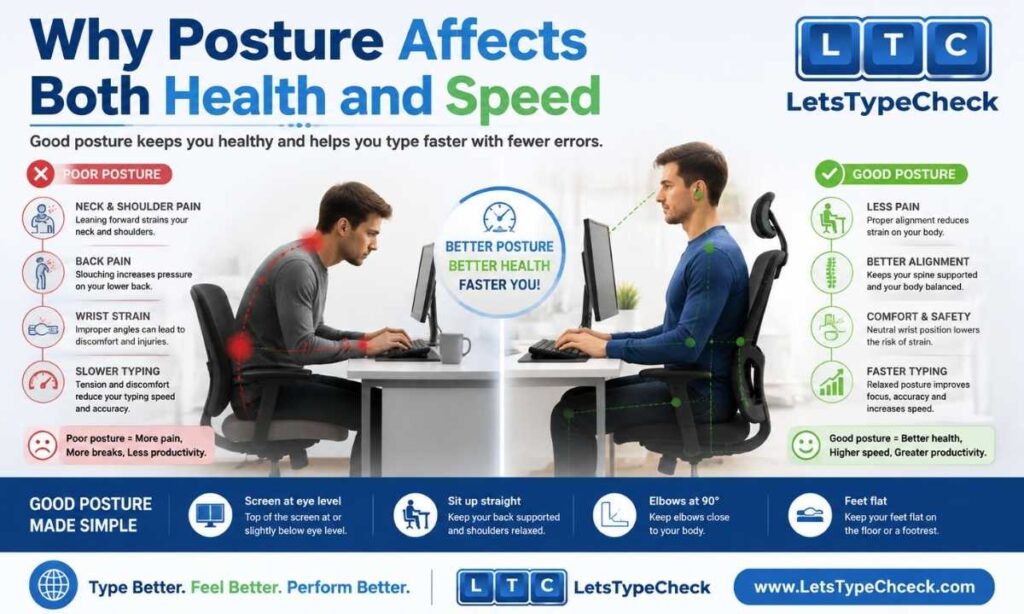
It’s easy to think of ergonomics purely as an injury-prevention topic — something you only need to worry about if your wrists already hurt. That’s only half the picture.
Repetitive strain injuries like carpal tunnel syndrome and tendinitis develop slowly, from sustained awkward positions repeated thousands of times a day, not from typing quickly. A person typing at 80 words per minute with straight wrists and relaxed shoulders is actually at lower risk than someone typing at 40 words per minute with their wrists bent upward the whole time. Speed was never the problem — sustained bad positioning is.
But posture also has a more immediate, less talked-about effect: it caps how fast you can type today. Tense shoulders restrict the small, fast movements your fingers need to make. A wrist bent at an angle forces your tendons to work through resistance on every keystroke instead of moving freely. Reaching for a keyboard that’s positioned too high or too far away adds a fraction of a second to every stroke — multiplied across a full paragraph, that’s a real dent in your WPM. Fixing your posture isn’t just about avoiding pain years from now. It removes physical friction that’s slowing you down right now.
The Ideal Workstation: Chair, Desk & Monitor
Chair: Your feet should rest flat on the floor or on a footrest, with your thighs roughly parallel to the ground. Use the chair’s lumbar support so your lower back is held upright rather than rounding forward. If your chair has armrests, set them so your arms can rest lightly without pushing your shoulders up.
Desk height: The goal is elbows at roughly 90 degrees when your hands are on the keyboard. If your desk is too high, your shoulders will hunch to compensate; too low, and your wrists will bend upward to reach the keys. An adjustable-height desk solves this outright — without one, adjusting your chair height (and adding a footrest if your feet no longer reach the floor) gets you most of the way there.
Monitor position: The top of your screen should sit at or just slightly below eye level, roughly an arm’s length away (about 50–70 cm). Too low, and you’ll round your neck forward all day; too high, and you’ll tilt your head back. If you use two monitors, angle them slightly inward so you’re not repeatedly twisting your neck to switch between them.
Neutral Wrist Position: The Single Most Important Rule
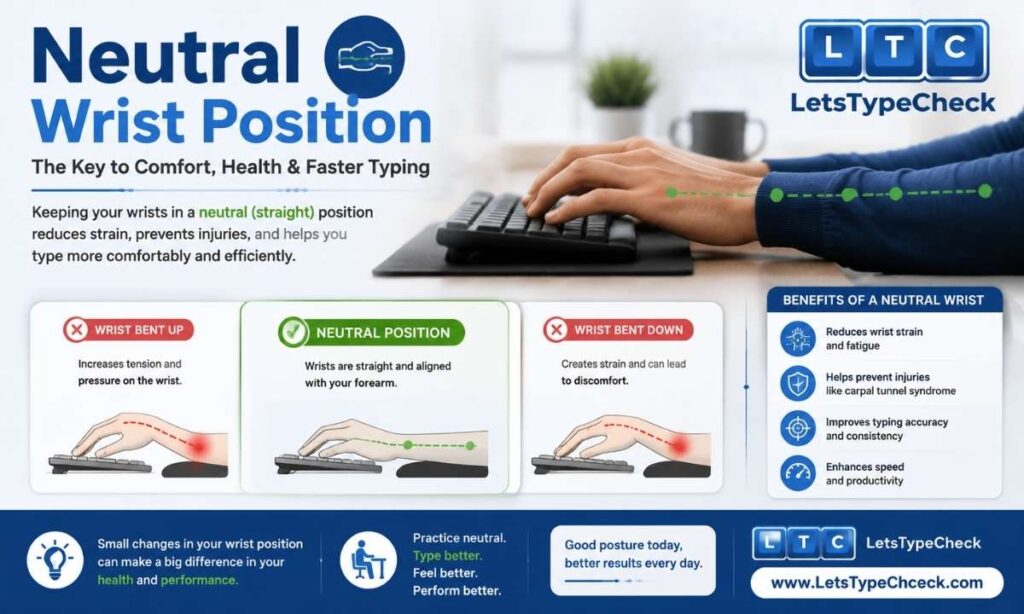
If you take away only one thing from this guide, make it this: your wrists should stay straight while you type — not bent up, down, or to either side. This is called a neutral position, and it’s the biggest single factor in whether your hands stay comfortable over the long run.
Bending your wrist upward (extension) compresses the carpal tunnel, the narrow passage nerves and tendons run through in your wrist — this is the position most linked to carpal tunnel syndrome. Bending it sideways toward your pinky (ulnar deviation) puts strain on a different set of tendons and is linked to cubital tunnel issues at the elbow. Both develop gradually, which is exactly why they’re easy to ignore until they’re already a problem.
A wrist rest is one of the most misunderstood accessories in typing setups. It’s meant to support your wrists during pauses between bursts of typing — not to be leaned on while your fingers are actively moving. If you’re resting your wrist weight on it constantly while typing, you’re restricting your fingers’ range of motion and adding pressure exactly where you don’t want it. During active typing, your wrists should hover just above the keyboard, with your forearms and shoulders — not the desk — supporting the weight of your hands.
Correct vs. Incorrect Posture at a Glance
Use this as a quick reference the next time you sit down to type.
| Element | Correct Posture | Common Mistake |
| Wrists | Straight and floating just above the keys | Resting on the desk or wrist rest while typing |
| Elbows | About 90 degrees, close to the body | Flared out or resting on a high desk edge |
| Shoulders | Relaxed and level | Hunched up toward the ears |
| Monitor | Top of screen at or just below eye level | Looking down at a laptop screen for hours |
| Feet | Flat on the floor or a footrest | Tucked under the chair or crossed |
| Back | Supported by the chair, upright | Leaning forward toward the screen |
Keyboard Selection & Accessories
You don’t need to buy anything to type with good posture — the fundamentals above matter more than any piece of equipment. But if you type for several hours a day, a few pieces of gear can make good posture easier to hold onto.
- Split keyboards physically separate the two halves, letting each hand sit at a natural width instead of forcing your forearms to rotate inward. The adjustment period is usually two to four weeks.
- Tented keyboards angle the two halves upward in the middle, which reduces forearm rotation without the full learning curve of a split design.
- A negative-tilt keyboard (angled slightly away from you, front edge higher than the back) helps some typists avoid bending their wrists upward — the opposite of the little fold-out legs most keyboards ship with, which actually make wrist extension worse.
- Mechanical keyboards require less force per keystroke than membrane keyboards, which can reduce finger fatigue over long sessions, though they’re a personal preference rather than a strict requirement.
- Whatever keyboard you use, keep your mouse at the same height and close to the keyboard, so you’re not repeatedly reaching or twisting to switch between them.
Laptop-Specific Ergonomics
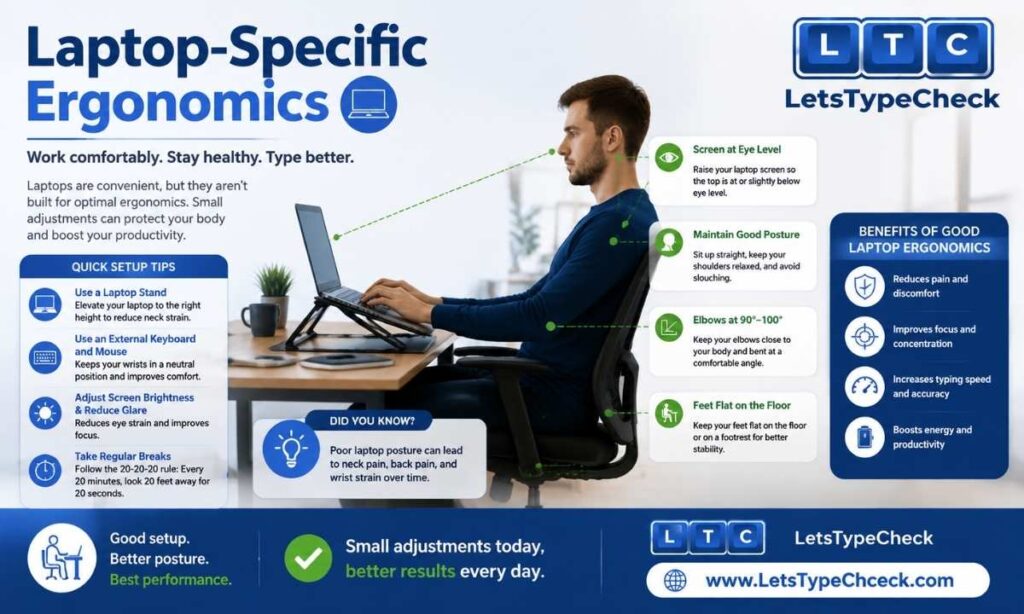
If you type mostly on a laptop, you’re working against ergonomics by design. A laptop’s screen and keyboard are locked to the same fixed height — so the position that puts your screen at eye level puts your wrists at an awkward downward angle, and the position that’s comfortable for your hands forces you to look down at the screen for hours. There’s no single laptop position that gets both right at once.
The fix is to break that link. Raise the laptop itself on a stand (or a stack of books, in a pinch) until the screen is at eye level, then plug in a separate external keyboard and mouse positioned at proper elbow height on the desk. This is a small investment that removes the core design flaw entirely, and it’s one of the highest-impact changes a laptop-first typist can make. If you’re typing on the built-in laptop keyboard without any raise at all, try to at least keep sessions shorter and take breaks more often until you can add a stand.
Break Schedules & the 20-20-20 Rule
Even a perfect setup doesn’t eliminate the need for breaks — sustained typing puts continuous load on the same small muscles and tendons no matter how well you’re positioned.
For your eyes: the 20-20-20 rule is simple — every 20 minutes, look at something roughly 20 feet away for 20 seconds. This resets the focusing muscles in your eyes and is separate from hand fatigue.
For your hands and wrists: take a brief 30–60 second pause every 20–30 minutes, and a longer break — standing up, walking around — every 60–90 minutes. What matters most is frequency, not length; short, regular pauses do more for cumulative strain than one long break at the end of a session.
It also helps to let natural micro-pauses happen — the small stops between phrases or sentences as you read ahead or think about what’s next. Some fast typists train themselves into a continuous, uninterrupted rhythm that removes these natural rests entirely. That’s fine for a short test burst, but sustained over hours it adds up. Letting yourself pause naturally rarely costs meaningful speed and gives your hands genuine relief.
A 5-Minute Daily Stretch Routine
Do this once in the morning before you start typing, or any time your hands start to feel tight during the day.
- Wrist circles (30 seconds each direction): extend your arm, relax your hand, and rotate your wrist slowly in both directions.
- Finger spreads (10 reps): spread your fingers as wide apart as you can, hold for two seconds, then relax.
- Wrist flexion and extension (10 reps each): with your arm extended, gently bend your wrist up, hold briefly, then gently bend it down.
- Thumb-to-finger touches (5 reps per finger): touch your thumb to the tip of each finger in turn, applying light pressure.
- Shoulder rolls (10 reps): roll your shoulders backward in a slow circle to release tension that builds up from hunching.
None of these need to be intense — the goal is gentle movement through the full range of motion, not a workout. If any stretch causes sharp pain rather than a mild pull, stop and treat it as a warning sign rather than pushing through it.
Posture for Exam Aspirants
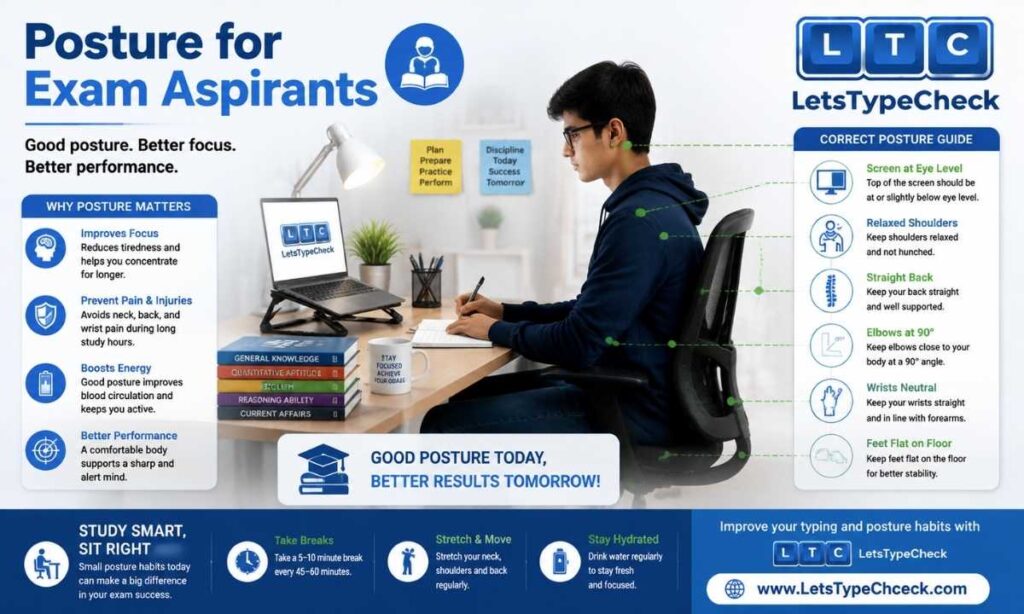
If you’re preparing for a government typing exam — SSC, CPCT, RRB, or similar — your posture challenge is a little different from someone typing at their own desk every day. You’ll likely be sitting at an unfamiliar workstation, on a keyboard you’ve never used before, under a strict time limit, with nerves working against you.
Exam-day tension tends to show up first in the shoulders and jaw, and it happens without you noticing. A few things help: practice your last few sessions before the exam in a seated position similar to what you expect at the test center, rather than always practicing from a favorite chair at home. Consciously drop your shoulders and take one slow breath before the timer starts — a few seconds spent doing this costs nothing against a 10-minute test but prevents the shoulder-creep that builds tension over the full session. If the exam keyboard feels unfamiliar under your fingers, resist the urge to hunch closer to see it better; keep your normal eye level and let your fingers adjust instead.
Building comfortable posture into your regular practice matters more than remembering it on exam day, since under time pressure you’ll default to whatever habit is already automatic. If you’re using our typing test to practice at exam-length durations, treat your seated position during practice as part of the drill, not an afterthought.
Warning Signs You Shouldn’t Ignore
Most ergonomic issues are preventable, but it helps to know what to watch for so you can adjust early rather than after damage has set in. Take these seriously if they show up:
- Numbness or tingling in your hands or fingers, especially the thumb, index, and middle fingers
- Pain in your wrists, forearms, or shoulders that shows up during or after typing sessions
- Stiffness or a reduced range of motion in your fingers or wrists
- Pain that continues after you’ve stopped typing, rather than easing off
- Weakness in your grip, or trouble with fine motor tasks like buttoning a shirt
Early-stage strain is far easier to resolve than an established injury — small adjustments to your chair, desk, or keyboard position can often fix it before it becomes serious. If symptoms persist after you’ve addressed the basics in this guide, it’s worth having a professional (an occupational therapist or hand specialist) take a look, particularly if you’re typing four or more hours a day. Don’t just push through it and hope it resolves on its own.
How Posture Ties Into Your Practice Routine
Posture isn’t a one-time fix — it’s a habit that either strengthens or erodes depending on how you practice. If you’re just starting out with touch typing, building correct posture in from day one is far easier than correcting it later; our Touch Typing Guide for Beginners and Finger Placement guide both cover hand position alongside the typing fundamentals.
If you’re already comfortable with touch typing and working on raw speed, posture is one of the quieter factors behind a stalled WPM — see our guide on how to type faster and how to reach 60 WPM for how it fits into a broader practice plan. And if tension or bad habits are creeping into your sessions, our common typing mistakes and fixes guide covers posture-related errors alongside technique ones.
A structured routine also makes it easier to actually stick with good posture, rather than remembering it for five minutes and forgetting for the rest of the session — our typing practice exercises guide includes natural points to run through the self-check from Section 1.
FAQs
Do I need an ergonomic keyboard to type comfortably?
No. Posture, desk height, and monitor position matter more than any specific keyboard. An ergonomic or split keyboard can help if you type for several hours a day or already have discomfort, but it’s not a substitute for the basics — a standard keyboard used with good posture is better than an ergonomic one used with bad posture.
Is it normal for my wrists to hurt after a long typing session?
Mild tiredness after an unusually long session isn’t unusual, but it should ease off quickly with rest. Pain that shows up regularly, lingers after you stop typing, or comes with numbness or tingling is not something to consider normal — it’s worth addressing your setup and, if it continues, having it checked.
Should I rest my wrists on a wrist rest while typing?
Not while your fingers are actively moving. Wrist rests are meant for pauses between bursts of typing. Resting your wrist weight on one continuously while typing restricts finger movement and adds pressure at the wrist — let your wrists float just above the keyboard instead.
How long does it take to adjust to a new ergonomic setup?
Basic changes like monitor height or chair adjustment feel natural almost immediately. Bigger changes, like switching to a split keyboard, typically take two to four weeks before they feel automatic rather than awkward.
Can bad posture actually slow down my typing speed?
Yes. Tense shoulders and bent wrists restrict the small, fast finger movements typing depends on, and add resistance to every keystroke. Many typists find their WPM improves somewhat just from fixing posture, independent of any additional practice.
What’s the single most important posture fix if I can only make one change?
Keep your wrists straight and floating just above the keyboard rather than bent or resting on the desk. It’s the change most directly linked to long-term comfort, and it’s free.
Conclusion
Good keyboard posture isn’t a one-time setup you complete and forget — it’s a habit you rebuild every time you sit down to type. Start with the self-check from Section 1, fix your wrist position first since it matters most, and let the rest of your setup — chair, desk, monitor, keyboard — follow from there. None of these adjustments cost much, and unlike raw practice, the payoff shows up immediately: less fatigue today, and fewer problems years from now.