
Most people try to type faster by moving their fingers quicker. It doesn’t work, and it never really has — because speed isn’t the thing you’re actually training. Accuracy is. Every mistake you make costs three separate actions: typing the wrong character, hitting backspace, and typing the right one. That’s not a rounding error. On a keyboard, each of those small corrections adds up to real, measurable time lost, and it happens dozens of times in a single minute of sloppy typing.
This is exactly why effective speed — the number that actually matters on a job application or an exam — is calculated as Gross WPM × Accuracy%, not raw WPM alone. A typist who slows down and holds 98% accuracy will consistently outproduce someone who’s “faster” but riddled with errors. This guide walks through what actually moves your accuracy: how it’s measured, the habits that build it, the specific error patterns worth hunting down, and a realistic timeline for how long it takes. For the full mechanics of how gross and net speed interact, see Gross WPM vs Net WPM.
What Is Typing Accuracy? (And How It’s Calculated)
Typing accuracy is the percentage of characters you typed correctly out of everything you typed. The formula is simple: (Correct Characters ÷ Total Characters) × 100.
- Example: if you type 500 characters and 15 of them are wrong, your accuracy is 97% — (485 ÷ 500) × 100.
- That percentage isn’t just a side stat. It’s the multiplier that turns your raw typing speed into your real, usable speed — see Gross WPM vs Net WPM for exactly how that conversion works.
Why Accuracy Matters More Than Speed
The Real Cost of Every Mistake
Each error you make isn’t a single wasted keystroke — it’s three: the wrong character, the backspace to remove it, and the correct character retyped. Research on typing efficiency puts the time cost of that cycle at roughly 1.5 to 3 seconds per error, once you account for the brief pause where your brain registers the mistake. Ten errors in a one-minute test can quietly eat up to 30 seconds — half the test — in corrections alone.
Effective Speed: Gross WPM × Accuracy%
This is the formula that actually determines how productive your typing is, and it’s the same one exams and employers use to score you:
| Typist | Gross WPM | Accuracy | Effective WPM |
| Fast but sloppy | 80 | 85% | ~68 |
| Slower but clean | 65 | 98% | ~64 |
| Balanced | 60 | 99% | ~59 |
The “faster” typist in that first row barely edges out the accurate one — and loses a huge share of that raw speed to correction time and broken rhythm along the way. This is the exact math behind the staged plan in How to Reach 60 WPM, and it’s why How to Type Faster puts accuracy as tip #1 before any speed technique.
What’s a Good Typing Accuracy Percentage?
Accuracy expectations rise sharply as the stakes go up. Here’s roughly where each skill level and role tends to land:
| Level / Role | Target Accuracy |
| Beginner (still building muscle memory) | 85–90% |
| Intermediate (comfortable touch typist) | 90–95% |
| Advanced / most office and admin roles | 95–97% |
| Data entry, live chat, professional typing | 97–98% |
| Legal, medical transcription, exam-grade work | 98–99%+ |
These are general guidelines, not hard rules — exact requirements vary by employer and by exam board. For a full breakdown by job, age, and specific exam, see What Is a Good Typing Speed? and Typing Test for Jobs.
Master the Home Row (Your Foundation for Accuracy)
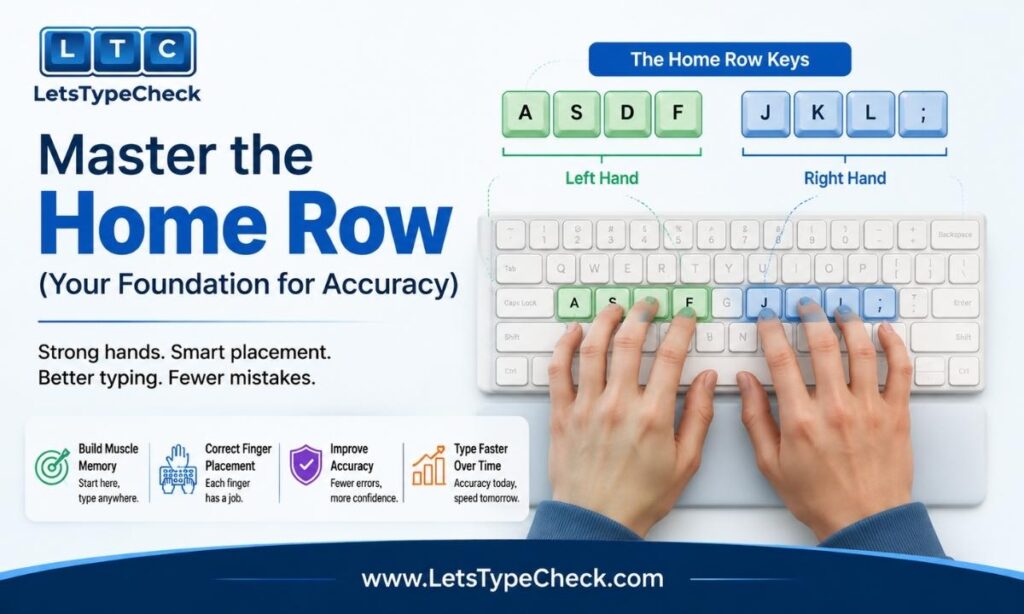
Every accuracy problem traces back to the same root cause: fingers that don’t have a fixed, reliable starting point. The home row — A S D F for the left hand, J K L ; for the right — is that fixed point. Feel for the small raised bumps on F and J; they exist so your index fingers can find home position by touch, without your eyes ever leaving the screen.
- Left hand: pinky on A, ring on S, middle on D, index on F
- Right hand: index on J, middle on K, ring on L, pinky on the semicolon
- Return to home row after every single reach — this reset is what makes accurate typing possible at any real speed
This is only a summary. For the complete finger-to-key chart, numpad placement, and a full 7-day drilling plan, see Finger Placement for Typing and Touch Typing for Beginners.
Stop Looking at the Keyboard (The No-Look Rule)
Glancing down at the keys is the single biggest accuracy killer, and it’s sneakier than it sounds. When you watch your hands instead of the screen, mistakes surface three to five characters after they actually happen — by the time you notice one error, you’ve usually already made two or three more.
- Drape a light cloth over your hands during practice sessions so looking down simply isn’t an option
- Try typing a few words with your eyes closed — it forces your fingers to rely on touch instead of sight
- Expect a rough first week. This is normal, and it’s the visual habit breaking, not a sign something’s wrong
This drill is covered in more depth in Touch Typing for Beginners, including how to know when you’ve broken the habit for good.
Slow Down First — Speed Comes Second
This is the single most counterintuitive piece of advice in typing, and also the most effective: practice at whatever speed lets you hold 97–98% accuracy, even if that feels uncomfortably slow. Typing fast while making constant errors doesn’t build speed — it trains the mistakes into your muscle memory just as effectively as it would train the correct movements.
- If your accuracy drops below roughly 95%, slow down immediately until it recovers, then rebuild pace from there
- Treat your accuracy percentage as the primary number to watch each session — not your WPM
- Speed that’s built on top of solid accuracy tends to stick; speed chased directly, without that foundation, tends to collapse under pressure
Find and Fix Your Specific Error Patterns

Generic practice improves everything a little. Targeted practice on your actual weak points improves your accuracy a lot — but first you need to know what kind of mistake you’re actually making, since the fix is different for each:
- Substitution — hitting an adjacent key instead of the right one (“teh” instead of “the”), usually a finger-placement issue
- Transposition — two letters swap order (“form” instead of “from”), usually a sign your fingers are outpacing your accuracy
- Omission — a letter gets dropped, often in double-letter words (“comitte” instead of “committee”)
- Insertion — an extra letter sneaks in, often from a finger lingering too long on a key
For the complete error taxonomy — including a diagnostic to identify which mistake is actually holding you back and a 7-day fix plan — see Common Typing Mistakes and Fixes.
Problem-Key Drills
If your errors cluster around specific letter pairs, isolate them and drill just those — general practice won’t fix a targeted problem:
- Common trouble pairs: a–s, o–i, e–r, n–m, c–v, t–y, g–h, b–n
- Type each pair back-to-back for 2–3 minutes: “as as as” and “sa sa sa,” then words that contain both letters
This mirrors tip #8 in How to Type Faster, which covers how to spot these patterns from your own test results.
Fix the Way You Correct Mistakes
How you fix an error matters almost as much as making fewer of them. Most typists tap Backspace once and retype a single letter — which patches the symptom but leaves the underlying motor pattern untouched.
- Delete the whole word (Ctrl+Backspace on Windows, Option+Delete on Mac) and retype it cleanly from scratch — this reinforces the correct movement instead of just patching one character
- The Backspace Ban Drill: once a day, do a short session where Backspace is off-limits entirely. If you make a mistake, leave it and keep going. This builds a real psychological cost for each error, and most people see a noticeable accuracy gain within two weeks
Type With a Steady Rhythm
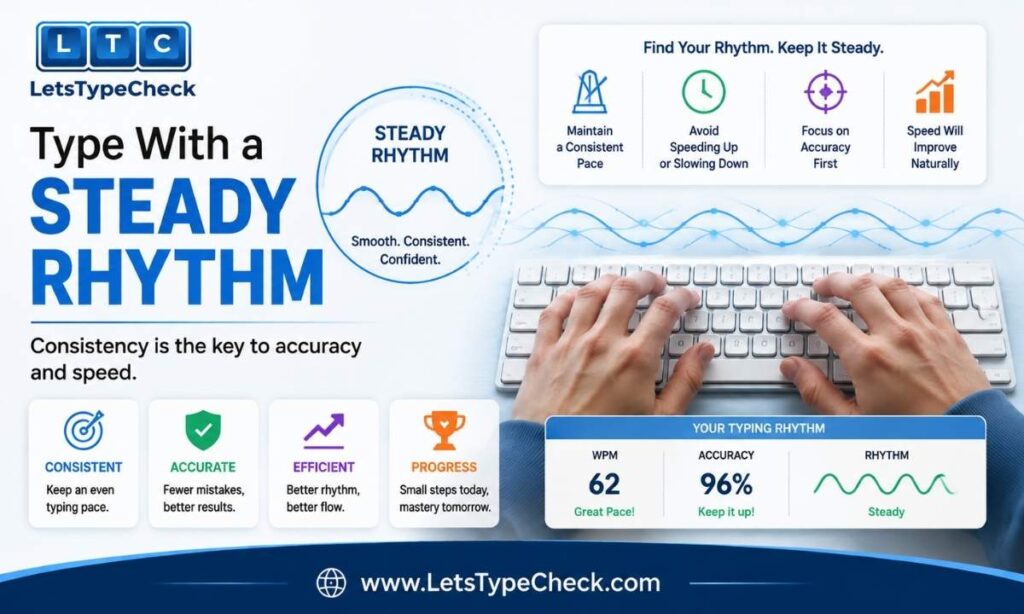
Inconsistent typists move in bursts — fast through easy, familiar words, then slow and hesitant on anything unusual. That uneven pace is exactly where fingers rush and miss keys. Accurate typists keep something closer to a steady, even tempo regardless of the word.
- Try practicing to a soft metronome beat, aiming for one keystroke per beat, then gradually increasing the tempo
- Break long or unfamiliar words into smaller chunks rather than typing them as one intimidating block
Rhythm is also covered as tip #6 in How to Type Faster, alongside the read-ahead habit that pairs well with it.
Ergonomics and Posture
Bad posture doesn’t show up directly in your accuracy score — it shows up as fatigue, and fatigue quietly produces more of every other mistake on this list. Keep wrists hovering just above the keyboard rather than resting on the desk, elbows near 90 degrees, and your screen at eye level so your neck stays neutral. A light touch on the keys also helps — most keyboards register a keystroke well before you’d feel it “bottom out.”
Accuracy on Mobile and Touchscreen Typing
Accuracy on a phone or tablet behaves differently than on a physical keyboard — small touch targets make adjacent-key substitution errors far more common, and heavy autocorrect reliance can hide mistakes rather than fix them. For the full breakdown of device-specific mistakes, including why autocorrect-induced errors slip past normal proofreading, see the mobile section of Common Typing Mistakes and Fixes.
Weekly Accuracy Checklist
Rather than a rigid day-by-day calendar, use this as a rotating focus for a few weeks of practice — move to the next item once the current one feels solid rather than on a fixed schedule:
- Anchor to home row and stop looking at the keyboard, even for a few words at a time
- Slow down until you’re consistently holding 97–98% accuracy, whatever speed that requires
- Review your test results and drill your two or three most frequent problem keys
- Run the Backspace Ban Drill once a day and correct mistakes with a full word retype, not a single-letter patch
This pairs with the speed-focused staged plan in How to Reach 60 WPM — that guide is the one to follow once your accuracy is solid and you’re ready to build speed on top of it.
Realistic Improvement Timeline
- Week 1: You’ll likely feel slower as you focus on form over speed. Accuracy climbs while WPM drops — this is correct progress, not a setback.
- Weeks 2–3: The urge to rush comes back as the novelty wears off. Push through it — this is when muscle memory is actually forming.
- Month 2 and beyond: Speed returns to your old baseline, but now sitting on top of much cleaner accuracy — from here, speed and accuracy improve together.
As a rough guide, moving from 85% to 95% accuracy typically takes 3 to 4 weeks of regular practice; 95% to 98% takes another 4 to 6 weeks. These ranges match the multi-week adjustment periods described across our other typing guides — there’s no shortcut, but the timeline is consistent and predictable.
Best Tools to Track and Improve Accuracy
The right practice tool should show you accuracy and WPM together, in real time, not as an afterthought at the end of a session. Look for:
- Live accuracy percentage and mistake count while you type, not just a final score
- Multiple test durations so you can practice in short bursts or longer, more realistic sessions
- Difficulty levels that let you step up from simple words to complex, technical sentences
Our own typing test covers all three — real-time WPM, accuracy, and mistake tracking, with Easy, Medium, and Hard difficulty and 30-second, 60-second, and 120-second durations, plus longer 1-minute, 2-minute, and 5-minute tests for building endurance at a held accuracy level.
Frequently Asked Questions
What is a good typing accuracy percentage?
95% is a solid general-use target, and most professional or data-entry roles expect 97–98%. Below 90% usually means you’re typing faster than your current skill level supports.
Should I delete the whole word or just the wrong letter?
Delete the whole word (Ctrl+Backspace or Option+Delete) and retype it cleanly. This reinforces the correct motor pattern, while patching a single letter leaves the underlying habit unchanged.
Does keyboard type affect accuracy?
Slightly — tactile mechanical keyboards can reduce double-presses because you feel a keystroke register. But technique accounts for the large majority of your accuracy, and plenty of people type above 98% on ordinary laptop keyboards.
How do I fix specific keys I always miss?
Check which characters show up most often in your mistakes, then spend 2–3 minutes per session drilling that key and its neighbors specifically. Isolated practice beats general typing for fixing a targeted weak point.
Is it better to practice slowly or at full speed?
Practice at whatever speed lets you hold 97–98% accuracy, even if it feels slow. Typing fast with frequent errors trains the mistakes in rather than out — speed catches up once accuracy is solid.
How long does it take to improve typing accuracy?
Moving from roughly 85% to 95% typically takes 3 to 4 weeks of regular practice; reaching 98% consistently takes another 4 to 6 weeks. The exact timeline depends on how ingrained your current habits are.
What is the most common typing error?
Substitution errors — hitting a key adjacent to the one you meant — are the most common, closely followed by transposition errors where two letters swap order.
Is 95% accuracy enough for jobs in the USA/UK?
For many general office and administrative roles, yes. But data entry, legal, and medical transcription positions frequently expect 98% or higher — check the specific role’s requirements before assuming 95% clears the bar.
Does accuracy differ on mobile vs. keyboard typing?
Yes — small touch targets and autocorrect create different error patterns than a physical keyboard. See Common Typing Mistakes and Fixes for the full device-specific breakdown.
Conclusion
Accuracy isn’t the boring metric to get out of the way before the real work of building speed begins — it’s the foundation everything else sits on. Anchor to the home row, stop watching your hands, slow down until your errors drop, and fix mistakes in a way that actually retrains the habit instead of papering over it. Do that consistently, and speed takes care of itself.
Ready to see where you stand? Take a free typing test and check your accuracy right now.
Related reading: Touch Typing for Beginners · Finger Placement for Typing · Common Typing Mistakes and Fixes · How to Reach 60 WPM